


If you want to understand how innovation actually reaches the market, you don’t start with news articles — you start with patents. And the most direct way to view those patents today is the Patent Public Search tool from the United States Patent and Trademark Office (USPTO). It’s the government’s primary public window into more than 200 years of technical disclosures, and despite being free, it delivers search capabilities that rival commercial systems when used properly.
This guide walks through the tool’s structure, practical workflows, hidden strict rules (like mandatory leading zeros), and how both beginners and experienced analysts can use it for accurate prior-art discovery. If you’ve ever felt overwhelmed by raw patent data, this article will give you a clear framework — one that professionals actually use in day-to-day research.
What Is Patent Public Search?
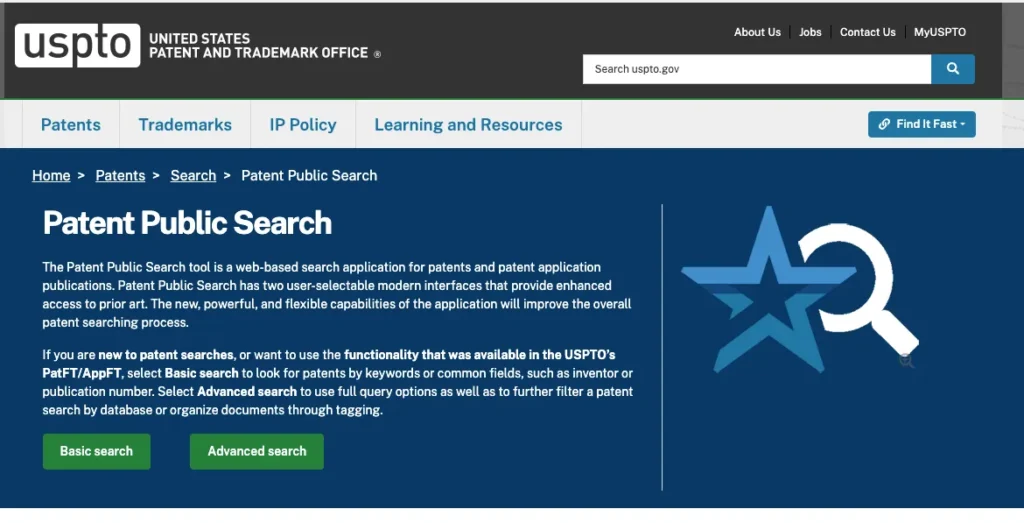
Patent Public Search (PPS) is the USPTO’s web-based patent search application designed to replace the legacy PatFT and AppFT databases. It allows you to search:
- Issued U.S. patents
- Published U.S. patent applications (US-PGPUB)
- USOCR, the full-text OCR database of older patent documents
Unlike older systems, Patent Public Search supports:
- Multiple search interfaces
- Boolean, fielded, and proximity searching
- Multi-pane viewing (results + document viewer + search history)
- Tagging and organizing documents
- Exporting citations
It’s a powerful system — but only if you understand how its logic works.
If your research also involves U.S. trademark records, our step-by-step guide on how to search the USPTO trademark database can help you navigate trademark queries with the same level of precision used in professional IP research.
Why Patent Public Search Matters
Patent searches are not just for attorneys. Product designers, software developers, investors, due-diligence teams, journalists, and competitive-intelligence researchers all rely on patents as a form of technical truth.
For North American professionals, Patent Public Search is particularly important because:
- It contains every U.S. patent and published application
- It provides the earliest public disclosure of many technologies
- It supports highly structured queries for complex analyses
- It serves as a first-pass prior-art tool before paid databases
For anyone building or researching in the business and innovation ecosystem, the ability to read patents is essential. (See more relevant database resources in our Business Databases category).
The Two Ways to Search Patent Public Search: Basic vs. Advanced
PPS offers two distinct interfaces:
- Basic Search — for straightforward keyword queries
- Advanced Search — for experts who need full Boolean and fielded control
Both ultimately return results drawn from the same patent databases, but they operate differently.
1. Basic Search: The Quick Start Interface
Basic Search is intentionally simple — ideal for someone who just needs to look up a patent number, an inventor’s name, or a couple of keywords.
The official guidance (USPTO Basic Search QRG) establishes several strict formatting rules that users must remember.
How Basic Search Works
The interface includes:
- Two keyword boxes
- An operator dropdown (AND, OR)
- A field selector (e.g., Everything, Title, Abstract, Inventor)
- Options for highlighting, plurals, or British equivalents
Example: Keyword Search
The USPTO provides this example:
To search for horse blanket, select Everything for both fields.
Type horse in the first box, choose AND, then type blanket in the second box.
This returns documents containing both terms anywhere in the patent text.
Critical Formatting Rules in Basic Search
These rules trip up new users:
Leading Zeros (Patent Numbers)
Patent numbers must be padded to 7 digits.
123456→012345612345→0012345
If you don’t add leading zeros, the system will not return the correct document.
Publication Numbers (Applications)
Application publications must be 11 digits, with zeros added after the year:
2021123456→20210123456
Date Formatting
Publication dates must use YYYYMMDD:
December 27, 2022→20221227
These rules are often overlooked, especially by users migrating from commercial systems. But they are mandatory in Basic Search.
What Appears in Basic Search Results
According to USPTO’s Search Results Quick Reference Guide, the following fields appear:
- Result number
- Document/patent number
- Display options (Preview, PDF, Text)
- Title
- Inventor(s)
- Publication date
- Page count
Clicking Preview, PDF, or Text opens the full document in the viewer pane.
This interface gives enough for quick research — but not enough for systematic searching.
2. Advanced Search: Full Boolean & Fielded Power
Advanced Search is where Patent Public Search becomes a true research tool — similar in philosophy to commercial systems like Derwent or Orbit, but without the subscription fee.
Your uploaded screenshot shows the real layout:
- Query builder panel (top-left)
- Database selector (US-PGPUB, USPAT, USOCR)
- Search results pane (bottom-left)
- Document viewer (right panel)
- Search history tracking (bottom tab)
Key Capabilities in Advanced Search
Advanced Search supports:
- Fielded queries (e.g., TTL for title, ABST for abstract, ACLM for claims)
- Boolean logic (AND, OR, NOT)
- Proximity operators
- Wildcard and truncation support
- Database filtering
- Tagging and folder organization
- Multi-pane review without losing your place
This interface is designed for patent prosecutors, OSINT researchers, and analysts who need precision.
Example: Fielded Boolean Query
A common workflow:
TTL:(machine learning) AND ABST:(diagnostic) AND ACLM:(model)
Meaning:
- The title contains “machine learning”
- The abstract mentions “diagnostic”
- The claims include the word “model”
This type of precise targeting is often necessary when searching crowded technology areas like pharmaceuticals, biotechnology, or AI.
Filtering by Database
You can select:
- US-PGPUB → published applications
- USPAT → granted patents
- USOCR → OCR-scanned older patents
This is essential when you need to separate pre-grant publications from granted claims.
Tagging & Document Organization
Advanced Search lets you:
- Tag documents
- Group them into folders
- Compare versions
- Maintain a live query + review workflow
For anyone performing freedom-to-operate (FTO) research or citation tracking, this dramatically reduces manual workload.
Practical Patent Public Search Workflow Examples
A. Looking Up a Specific Patent
- Go to Basic Search
- Select Patent Number
- Pad the number to 7 digits (e.g., 0543210)
- Click Search
- Open the PDF for the authoritative version
B. Searching for Prior Art in a Technical Field
- Open Advanced Search
- Combine title, abstract, and claims fields:
TTL:(lidar) AND ABST:(autonomous) AND ACLM:(sensor)
- Filter to US-PGPUB for the newest disclosures
- Tag documents into categories (e.g., “High Relevance,” “Possible Conflict”)
C. Researching an Inventor or Company
IN:(LastName-FirstName) AND AS:(Tesla)
Where:
IN= InventorAS= Assignee
This is useful in competitive analysis.
Strengths & Limitations of Patent Public Search
Strengths
- Free and publicly accessible
- Supports advanced Boolean logic
- Combines patents and applications in one system
- Multi-pane interface enhances workflow
- Official source for U.S. patent data
Limitations
- No automatic stemming (must rely on plurals option)
- Requires rigid formatting rules
- Interface has a learning curve
- Limited batch export compared to premium tools
Despite these limitations, PPS remains the single most accurate dataset for U.S. patent information.
When Patent Public Search Should Be Your First Stop
Professionals typically use PPS when:
- Filing a provisional patent
- Checking competitor filings
- Conducting early-stage prior-art research
- Investigating technical trends
- Reviewing inventorship records
- Validating citation chains
- Preparing for litigation or licensing discussions
Its reliability, precision, and proximity to the source make it indispensable.
Conclusion
Patent Public Search isn’t merely an online archive — it’s the living historical record of American invention. Whether you’re a startup founder validating novelty, a journalist fact-checking a technology claim, or a researcher exploring prior art, this tool offers high-quality data with zero paywalls. The challenge isn’t accessing the information; it’s knowing how to ask the right questions.
With the workflow guidance and concrete examples above, you now have an analyst-level approach to navigating PPS — from basic keyword lookups to fully structured, fielded Boolean queries.
Sources Used (Expert, Authoritative)
- USPTO – Patent Public Search
- USPTO Search Results QRG: https://www.uspto.gov/sites/default/files/documents/Patent-Public-Search-Search-results-QRG.pdf
- USPTO Patent Public Search FAQs: https://www.uspto.gov/patents/search/patent-public-search/faqs#type-search-results_208870
Internal references added naturally:
- USPTO Trademark Database Guide (TheDatabaseSearch): https://thedatabasesearch.com/industry-databases/how-to-search-the-uspto-trademark-database/
- Business Databases Category (TheDatabaseSearch): https://thedatabasesearch.com/category/business-databases/
This article was created with AI assistance and reviewed by a human editor.

